


This resource portal is for active Designfusion customers.

Dashboard Home
Solid Edge Tech Tip - Property Text Command
Selects property text to be displayed in parts lists, balloons, callouts, and other annotations.

Select Property Text Dialog Box
Property text strings retrieve file or model-related data and display it in dimensions and annotations, parts lists, tables, blocks, and drawing view captions. The Select Property Text dialog box specifies the type of information to be retrieved and the source file to be referenced. When a property text string is resolved, its property value is displayed.
Not all dialog box options and properties are available in all environments.

Parts
Lists the names of source files available for reference. When you select a file name, a graphical preview is displayed in the Preview pane in the dialog box.
Preview
Displays a graphical preview of the reference file highlighted in the Parts pane.
Source
Specifies the source for the properties displayed in the Properties box. For a table showing which property text source to choose for specific applications of property text, see Selecting a property text source.
o From active document
Specifies that property values are retrieved from the active file.
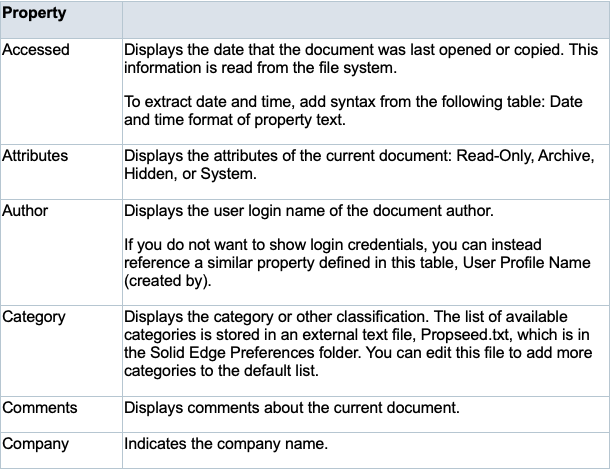
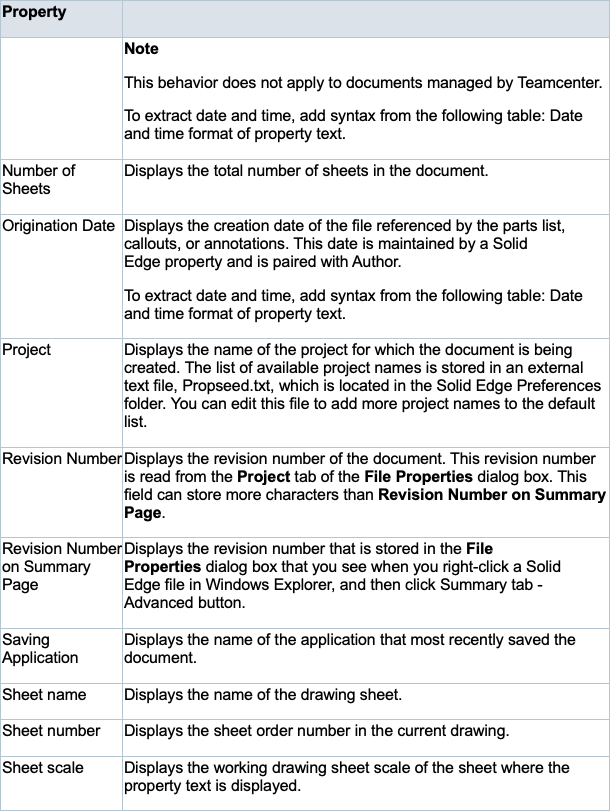
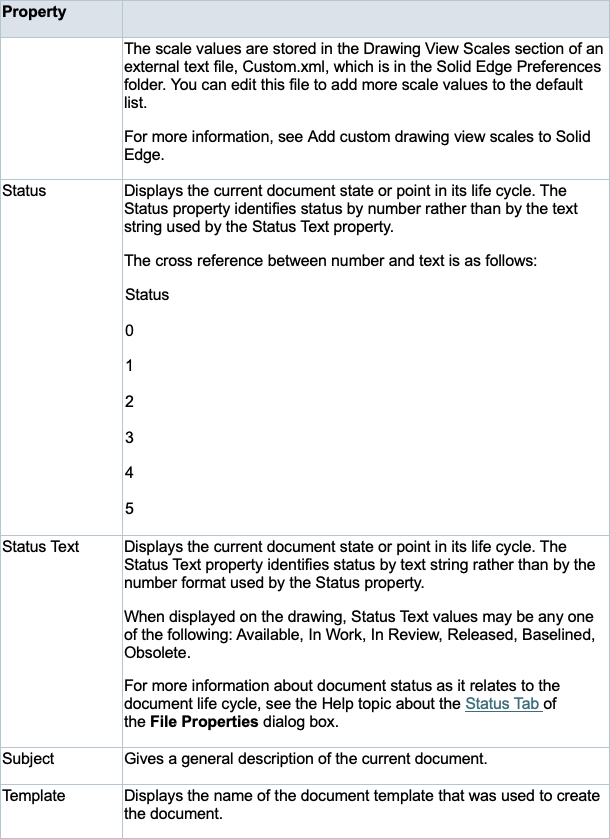
See Appendix 1, for a list of the properties that can be retrieved when the source is From active document.
o Variables from active document
Specifies that property values are retrieved from variables in the Variable Table for the active file.
o Named reference
Specifies that property values are retrieved from the reference file currently highlighted in the Parts pane of the Select Property Text dialog box.
Note: When inserting property text into a cell in a user-defined table, select the Named reference source to reference custom properties, file properties, and variables exposed in the Variable Table in the model document.
o Index reference
Specifies that property values are retrieved from the history-based index of model files inserted into the drawing. You can see the sequence of inserted files in the Parts pane of the Select Property Text dialog box.
o From graphic connection
Specifies that property values are retrieved from the top-level assembly, subassembly, or part.
o If the annotation is connected to an assembly, then this option references the node that is counted by the parts list.
o If the parts list is atomic, then it references the part properties.
o If the parts list is a top-level parts list, then the properties are retrieved from the top-level part or assembly.
o If the annotation is connected to a part in a top-level assembly, it displays information from the part. It retrieves property values from the top-level occurrence.
Note: When you want to get the part from the connected edge, use the option, From graphic connection to Part.
o From graphic connection to Part
Specifies that property values are retrieved from the part to which the annotation is connected.
o From graphic connection to Assembly
Specifies that property values are retrieved from the assembly or subassembly that is the immediate parent of the part to which an annotation is attached.
If you use this option for a drawing view of a part, then the properties are retrieved from the part.
o From drawing view
Specifies that property values are retrieved from variables in the drawing view.
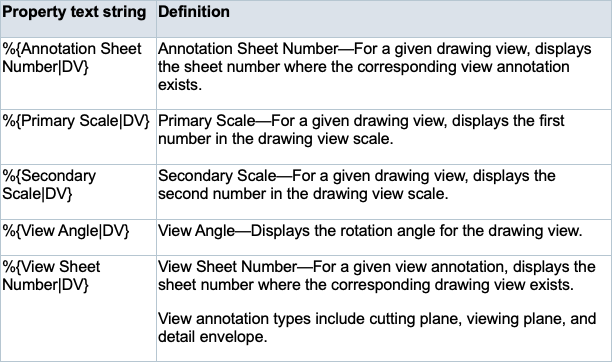
See Appendix 2, for a list of the properties that can be retrieved when the source is From drawing view.
o From graphic connection to Block
Specifies that property values are retrieved from blocks and block labels. All blocks in the Block Library in the current draft document are available for selection, even if there are no occurrences placed on the drawing.
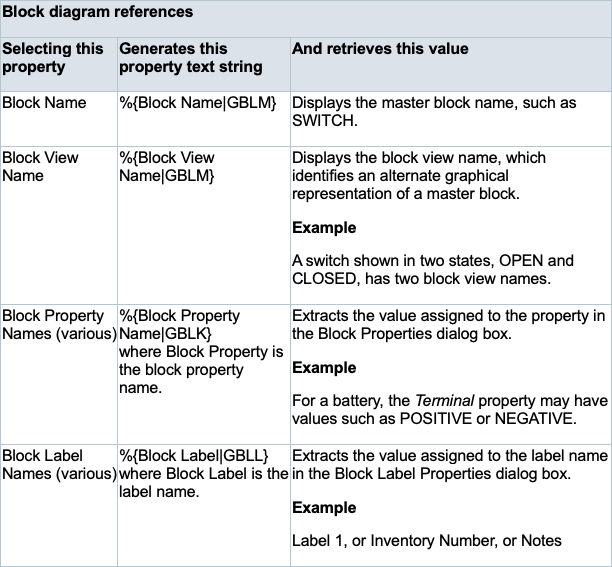
See Appendix 3, for a list of the properties that can be retrieved when the source is From graphic connection to Block.
Properties
Lists all the properties that are available based on the currently selected Source type.
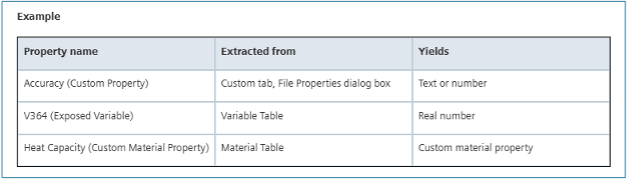
If two properties have the same name, the advantage to using an exposed variable property instead of a custom property is that you can format the resulting real number using the Format Values dialog box. For example, you can specify precision, no units, dual units, and tolerance.
Select
Adds the property selected in the Properties list to the Property Text box.
Note: You also can double-click a property to add it to the list.
Property Text
Shows the property text string to be resolved. If multiple property text strings are selected, they are displayed in a linear list. When resolved, the value for each property is displayed in the annotation.
The property text strings are of the following formats:
o From active document - String is %{value}.
o Variables from active document - String is %{<variable name>|V}.
o Named reference - String is %{<value>|<file name>}.
o Index reference - String is %{<value>|(R1)}, where R1, R2, R3 refers to the sequence of files inserted into the drawing and listed in the Parts pane.
o From graphic connection - String is %{<value>|G}.
o From graphic connection to part - String is %{<value>|GP}.
o From graphic connection to assembly - String is %{<value>|GA}.
Copy
Copies the property text string(s) listed in the Property Text box to the clipboard.
Symbols and Values
Opens the Select Symbols and Values dialog box for you to generate the appropriate symbols and model-derived values without having to type the property text codes. Examples of the types of symbols you can select include ± (plus minus), ° (degree), and ∅ (diameter). Examples of model-derived values include hole references, bend data, and weld beads.
Appendix 1: Property Text source list (Source: From Active Document)
The source you choose in the Select Property Text dialog box determines the source of text placed in callouts, balloons, title blocks, and tables. It also determines which properties you can select in the Properties list.
For example, when the file referenced by the Select Property Text dialog box is set to From Active Document, you can choose from the list of properties defined in the following table. Many of these properties are common across other property text sources, including:
• Named Reference |<filename>
• Index Reference |R1
• From Graphic Connection |G
• From Graphic Connection to Part |GP
• From Graphic Connection to Assembly |GA


Appendix 2: Property text from drawing views
In the Select Property Text dialog box, when the property text source is From drawing view, you can choose from the list of properties defined in this table. You can retrieve the derived property text values into a drawing view caption, for example, or a callout.
Appendix 3: Property text from blocks
In the Select Property Text dialog box, when the property text source is From graphic connection to Block, you can choose from the list of properties defined in this table. You can retrieve the derived property text values onto a block diagram, for example, or into a cell in a block table, or into an annotation, such as a callout or balloon.
August 25, 2026