


This resource portal is for active Designfusion customers.

Dashboard Home
Solid Edge Quick Tip - How to Add a Macro to the Quick Access Toolbar?
In certain aspects in Solid Edge, you may be required to use and external macro. For example, to prepare a pipe or fitting part (outside of the standard part library), to be used in the XpresRoute Piping Route command, you use and external Piping Utility. You can launch the Pipe Utility macro (PreparePipingComponents.exe) directly from the C:\Program Files\Siemens\Solid Edge 2026\Piping Route\Piping Utility folder. However, if you are preparing several parts, it is more efficient to add this macro to a Solid Edge menu. In this Solid Edge tip, we will show you how to add the above-mentioned Piping Utility to the Quick Access Toolbar.
To add the Pipe Utility routine, to your Solid Edge Quick Access toolbar, do the following:
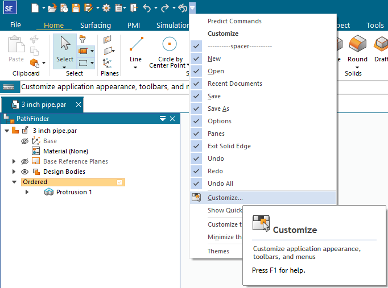
• Select the Customize command from the Quick Access pulldown menu.
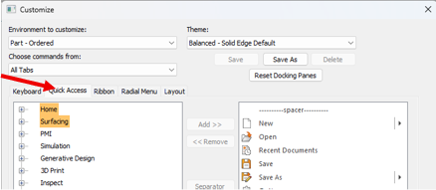
• On the Customize dialog, make sure that you are on the Quick Access tab.
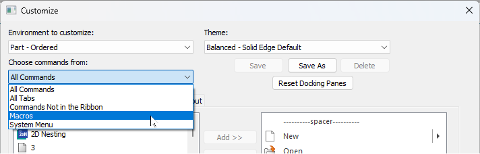
• Under the Choose commands from: field, select Macros.
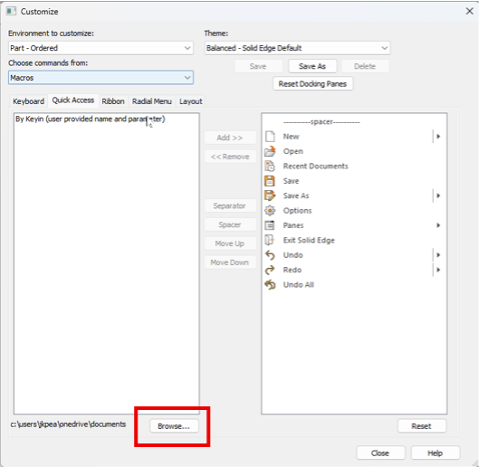
• At the bottom left of the dialog, click on the Browse button.
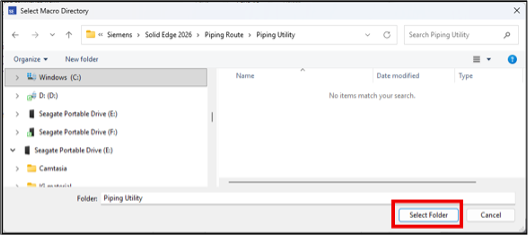
• Browse to the C:\Program Files\Siemens\Solid Edge 2026\Piping Route\Piping Utility folder.
• Once you are in the folder, select the Select Folder button at the bottom right corner of the Select Macro Directory dialog.
• This will populate the left window with the files in that folder. From this list select the PreparePipingComponents.exe file and click the Add button.
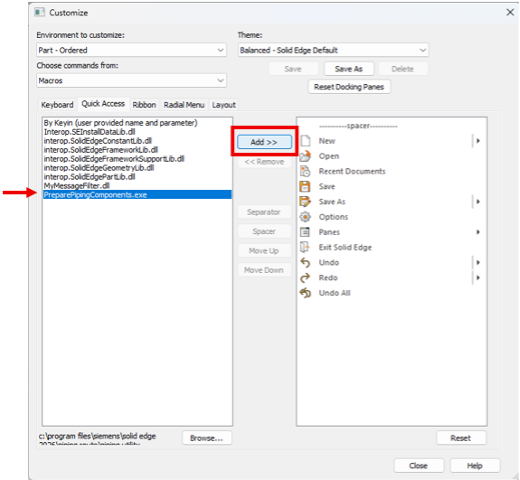
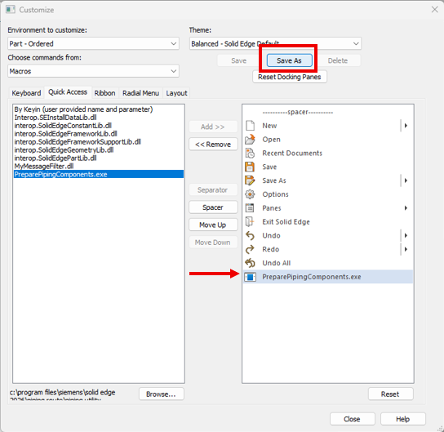
• This adds the executable to the window on the right. Next, click the Save As button to save this as a unique theme.
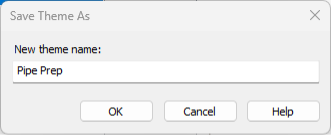
• Enter in a theme name. For example, Pipe Prep, and click OK.
• Click on the Close button to close the dialog. Notice that the screen update and the PreparePipingComponents macro has been added to your Quick Access menu.

You can now use this macro like any other command in Solid Edge.
September 22, 2026