


This resource portal is for active Designfusion customers.

Dashboard Home
NX - Sketch FAQ for Legacy Sketch Users
As user of the legacy Sketch Task Environment, you may have questions similar to those asked here.
Sketch has an entirely new solver, but many of the ideas have been tested in existing 2D Synchronous Technology commands and in the Siemens CatchBook software.
Renewing legacy sketches FAQs
You can open and revise legacy sketches in the legacy task environment, or you can renew a sketch using the standard Renew Feature command at Menu → Edit → Feature → Renew Feature.
Do I lose information when I migrate an existing sketch?
First, we call it renewing a sketch, not migrating. Renewing a sketch lets it use the new solver.
No information is lost.
When I renew a sketch, can I go back?
Only as long as Undo is available.
What happens to expressions when I renew a sketch?
Expressions are maintained exactly as they were. Set Sketch Settings, Dimension Label to Expression to see them. If you do not need these dimensions to reference external expressions, you can safely remove then using Add/Remove Expression.
What happens to constraints when I renew a sketch?
They are converted to persistent relations. Turn on Display Persistent Relations to see them. You will find that you can safely delete most of them because the current solver will find the relations anyway. The rule to follow is to use Undo to restore any persistent relations if the sketch is no longer fully defined after deleting them. These will be the same persistent relations mentioned above such as Equal Length and Midpoint Aligned. You can safely delete common relations such as coincident point where lines connect, tangent, vertical, horizontal, and perpendicular.
To examine the types of persistent relations in your renewed sketch, use the command Persistent Relations Browser.
After renewing a sketch, how do I display the regions shaded?
On the View tab, in the Sketch Display group, turn on Shaded Region.
Sketch creation FAQs
Creating the sketch plane has not changed from the prior version, but new labels and colors have changed how it appears.
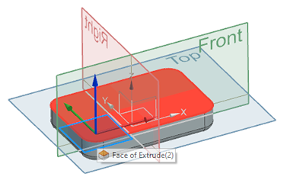
How do I prevent the view from rotating when I create or edit a sketch?
Sketch Preferences, Session Settings tab, Change View Orientation (Turn off)
How do I define the sketch plane when using the Hole command?
In the Hole dialog box, you can simply select a face to sketch on. To more specifically define the sketch plane, either click the button Sketch Section in the Position group of the Hole dialog box, or create the sketch first, before using the Hole command.
Sketch display FAQs
Sketch has some new settings and options that control the sketch display.
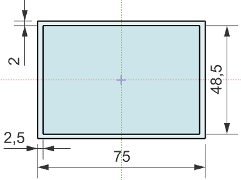
Why don't I see the datum coordinate system in the sketch?
It is hidden by default, but you can turn it on in the Part Navigator.
How can I edit the sketch without seeing part geometry?
To hide features after the sketch, first make the sketch the current feature or use the option Edit with Rollback.
To show or hide all solid bodies or datums use Show and Hide. To access it, you can always press CTRL + W or use the search box to display it on the View tab while sketching.
I don't like the shaded areas. How can I turn it off?
On the View tab, in the Sketch Display group, turn off Shaded Region.
We are sorry if you don't like it, because it can be helpful to see the closed regions. The shading is transparent, so it does not obscure sketch objects behind it.
See other sketch display options on the View tab, in the Sketch Display and Sketch Section groups.
Curves FAQs
The curve creation commands are the same as before. The results may appear different with the new settings and colors.
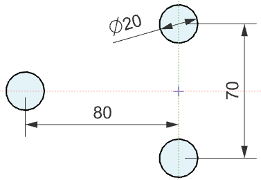
When sketching curves and shapes, can I still enter values to create expressions?
When you key in values while drawing curves, Sketch creates an internal dimension without a "p" expression. To create an external p expression:
• Type an equal sign (=) before the dimension value.
• Right-click a dimension and choose Add/Remove Expression.
When I enter a circle diameter and continue to stamp circles, why does only the first circle have a dimension?
Because the subsequent circles have an equal radius relation to the first. For example, in the picture above, when you edit the 20mm diameter, all three circles will change size.
When I enter a fillet radius and continue to fillet other corners with the same value, where are the dimensions?
Same answer as the previous question. Multiple fillet radii are controlled by the first dimension.
Dimensions FAQs
You can create dimensions without using any commands, but the old commands are still available
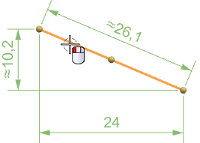
Where are the dimension commands, like Rapid Dimension?
These commands are not displayed on the ribbon by default because you can create dimensions by just clicking on a curve or curves, and then selecting the dimension you want.
There are reasons you may prefer to use the Rapid Dimension command. For example, using this dialog box filters what is selectable and does not display curve handles such as line midpoints. This can be helpful when you sketch is complex.
The simplest way to add this (or any) command to the ribbon bar is to search with the search box. In the search results list, right-click a command to add it to the ribbon.
How do I change the text size of dimensions?
First, in Sketch Settings, turn off Fixed Text Height on Screen. Then adjust text size on the View tab, in the Text Size group, with the Increase and Decrease buttons. You can also use the shortcuts CTRL + Up Arrow and Down Arrow on your keyboard.
Can I modify dimension values with a slider bar?
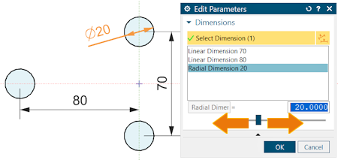
Use the Edit Parameters command. Use the search box to find this command with and add it to the ribbon bar.
How can I change a dimension from a diameter to a radius etc.?
Right-click a diameter dimension and choose Convert to Radius or Convert to Diameter.
Does the sketch scale when I change the first dimension?
Control this option on with Sketch Preferences, Session Settings tab, Scale on First Dimension.
This works with dimensions you create, not with dimensions automatically created when you key in a value while sketching a curve.
Expressions FAQs
Expressions are still available but are not created for every dimension by default. Most users edit sketch dimensions with the sketch open for edit, not in the Expressions dialog box. Creating expressions only when you need them minimizes the number of expressions, avoids extra dependencies, and helps prevent changing a sketch dimension by mistake.
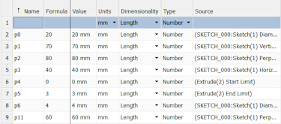
How can I create expressions in a sketch?
Select one or more dimensions, right-click and choose Add/Remove Expression.
I added an expression to a dimension, but nothing happened.
You also need to change Sketch Settings, Dimension Label from Value to Expression. This will display the full expression with the name and the value for dimensions.
Actually, the dimension changes color when it contains an expression.
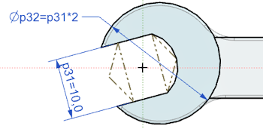
How do I create equation relationships between dimensions?
Follow the two previous steps to add expressions to the dimensions, then modify the expressions. In the example below, the circle diameter will remain twice the linear dimension value.
Geometric relations FAQs
This is the biggest change from prior versions. Instead of permanent constraint objects, the solver now finds relations "on the fly" when you edit the sketch. As you work with the solver, you will find that you can focus on creating curves and dimensions and let the solver find relations when you need them to modify geometry.
What is the difference between a relation and a constraint?
Sketch relations are either found relations or persistent relations. Found relations means that the curves have identifiable geometric characteristics like tangent, collinear, parallel, etc. Whenever you edit sketch geometry, the solver finds these relations again, but nothing permanent was stored. A persistent relation does store a persistent object to remember the relation. Persistent relations are automatically created for relations that the solver won't find, including Midpoint Aligned, and Equal Length. Constraints are like persistent relations.
Why do I see different relations depending on where I select a curve?
If you select an entire curve or the middle drag handle, NX assumes you want to translate the curve. If you select the handle on the end of the curve, you are intending to rotate or extend the curve. The pertinent relations are different in each case.
Without a constraint, how can I be sure my sketch won't move?
The sketch will only move when it is edited. At the time it is edited, the solver finds the relations that it needs. The sketch will not move all by itself.
How can I display all relations?
This is hard for existing users to understand, but when you make an edit, the solver only finds the relations it needs for curves that are about to move. The solver does not store found relations for every curve in the sketch. You can turn on the option Display Persistent Relations, but found relations are displayed only when you select a curve to drag or a dimension to edit. At that time, the solver finds and displays pertinent relations.
There are fewer Make commands than the prior Geometric Constraints. Where did they go?
Some of the relations have been combined. For example, Make Coincident includes coincident, point on curve, and concentric conditions. Make Vertical can make a line vertical or vertically align points.
Why is the Fix Curve command outside of the Make commands?
This command is intended for you to temporarily lock areas that you don't want to move, particularly when working with a large layout without relations.
Does it matter if I select the command or the geometry first?
Yes and no. If you know the order of the prompts in the dialog box, you can select the objects first. The normal order is to select the curve to move first, then the stationary curve. This pick sequence, called object-action, requires fewer clicks than opening a command dialog.
When you select the command first, the dialog box prompts you through the sequence and filters the selection to only allow the kind of object the dialog step is looking for. This may be helpful when the sketch is complex, or when you are learning.
Why doesn't Sketch create persistent relations all the time?
The way the solver works, this would slow it down. Persistent relations and external expressions both require the solver to do more work.
Why do some commands create persistent relations?
Midpoint Aligned and Equal Length were mentioned above. Other commands that create persistent relations by default include Pattern and Polygon. In other commands, such as Offset the Create Persistent Relation option is off by default.
What happened with the 2D Synchronous Technology commands?
These commands are still present. They are included in the ribbon bar in the Advanced role. They are useful for making design intent changes to sketches containing many relations. These commands prompt you to select the types of relations for the command to find. This is the opposite of other commands, where you click to relax the relations you don't want. In complex situations, it can be easier to define the relations you want, instead of selecting the relations you don't want.
External relations FAQs
Similar to creating fewer external expressions, you should also avoid creating unnecessary external geometric relations outside of the sketch. External relationships create more dependencies and increase the possibility of a change propagating in the model unnecessarily.
Why do I have to use Include or Project to bring geometry into the sketch before I can make a relation to it?
The goal is to avoid unnecessary on inadvertent relationships in the model. Another method to select geometry outside of the sketch is to change the Selection Scope from Within Active Sketch Only to Within the Workpart Only. This setting allows you to include geometry from outside of the sketch without using the Include dialog.
Drag curves FAQs
You can drag curves by selecting drag handles, or by just selecting the curve. Pertinent relations are shown, allowing you to relax relations that you don't want.
Why can't I drag some curves?
With the Show Moveable option turned on, curves are brown when they are at least partially movable and black when fully defined.
To drag curves that are defined by dimensions and relations, you can delete dimensions or relax relations. Or you can let the solver propose a solution when you turn on the options Relax Relations and/or Relax Dimensions.
How can I drag a curve in only one direction?
Hold the shift key when dragging.
March 10, 2026